

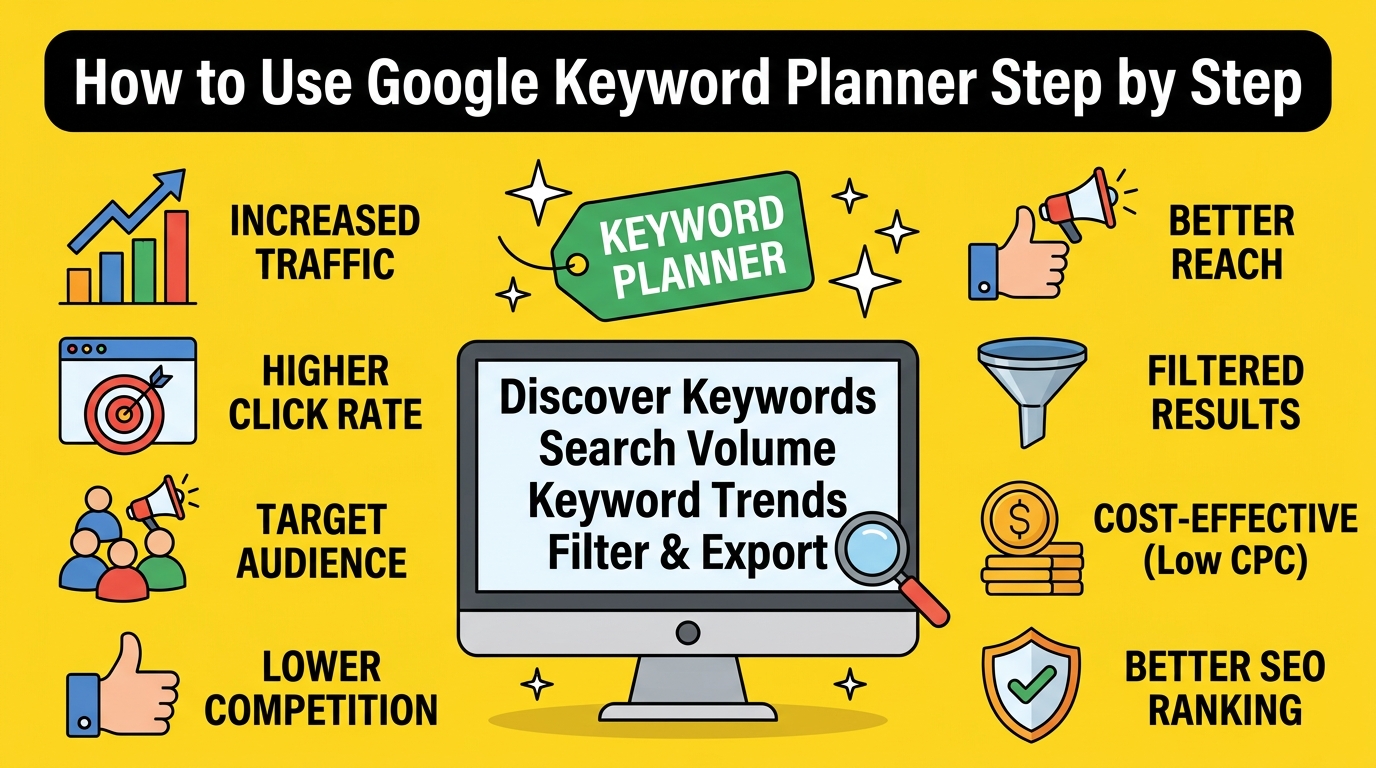
Introduction: Why Google Keyword Planner Is the Smartest Tool You’re Not Using Properly
Let me be honest with you. When I first started doing keyword research years ago, I jumped straight into paid tools and completely ignored Google Keyword Planner. I thought it was “just for ads people.” I was wrong — and it cost me months of wasted effort.
Google Keyword Planner is one of the most powerful, accurate, and completely free keyword research tools available. It pulls data directly from Google — the search engine that handles over 8.5 billion searches every single day. No tool on Earth has better data than Google itself.
Whether you’re running a blog, an e-commerce store, a local business website, or a Google Ads campaign, Keyword Planner gives you the exact language your potential customers are using when they search online. That is incredibly valuable.
This guide will walk you through every step of using Google Keyword Planner — from creating your account all the way to turning keyword data into a proper content or ads strategy. We’ll keep everything simple, clear, and actionable. No jargon. No fluff. Just the real stuff that works.
What Is Google Keyword Planner?
Google Keyword Planner is a free tool inside Google Ads that helps you discover keywords related to your business, products, or content. It shows you:
- How many people search for a keyword each month (search volume)
- How competitive a keyword is
- What advertisers are bidding for that keyword
- Related keyword ideas you might not have thought of
- Seasonal trends in search behaviour
Originally built for Google Ads users to plan paid campaigns, marketers and SEO professionals quickly realised this tool is just as useful for organic keyword research. After all, the data comes straight from Google — which makes it more reliable than any third-party estimate.
Who Should Use Google Keyword Planner?
Honestly? Almost anyone with an online presence.
- Bloggers and content creators who want to write articles people are actually searching for
- Small business owners who want to show up in local search results
- E-commerce sellers who want to optimise product pages and category listings
- Digital marketers who manage SEO or paid ad campaigns
- Freelancers offering SEO or content writing services to clients
- Startups validating whether there is search demand for their product or idea
If you create content, run ads, or want more people to find your website through Google — this tool is for you.
Step 1: Set Up a Google Ads Account (It’s Free — No Card Required)
This is where many people get confused. Google Keyword Planner lives inside Google Ads, so you need a Google Ads account to access it. But here’s the important part: you do not need to run any ads or enter your credit card to use the tool for keyword research.
Here’s how to get set up:
1.1 Go to Google Ads
Open your browser and go to ads.google.com. Click on “Start now.”
1.2 Sign In With Your Google Account
Use any Gmail or Google Workspace account. If you don’t have one, create a free Google account first.
1.3 Skip the Campaign Setup (This Is the Key Step)
When Google asks you to create your first campaign, scroll all the way to the bottom of the page and click “Switch to Expert Mode.” This is crucial. If you don’t do this, Google will push you through a simplified setup that forces you to start paying for ads.
Once in Expert Mode, Google will ask you to set up a campaign. Look for a small link at the bottom that says something like “Create an account without a campaign.” Click that.
1.4 Enter Your Business Details
Google will ask for your country, time zone, and currency. Fill these in accurately — they affect how your data is presented. You don’t need to enter payment information at this stage.
1.5 Access the Tool
Once your account is created, click on “Tools & Settings” in the top navigation bar (it looks like a wrench icon). Under the “Planning” section, you’ll see “Keyword Planner.” Click it.
You’re in.
Step 2: Understand the Two Main Features
When you open Keyword Planner, you’ll see two main options:
Option A: “Discover New Keywords”
This is the feature you’ll use most often for keyword research. You enter a topic, a product, a service, or even a competitor’s website URL — and Google gives you a list of related keyword ideas with data.
Option B: “Get Search Volume and Forecasts”
This is useful when you already have a list of keywords (perhaps from a brainstorming session or another tool) and want to check their search volumes and competition levels in bulk.
For most people doing keyword research from scratch, Option A is your starting point.
Step 3: Discover New Keywords — The Right Way
Click on “Discover New Keywords.” You’ll see a simple search box.
3.1 Enter Your Seed Keywords or Website URL
You have two choices here:
Start with keywords: Type in words or phrases related to your topic. For example, if you run a bakery in Manchester, you might type “birthday cakes,” “custom cakes,” or “wedding cakes UK.”
You can enter up to 10 seed keywords at once. Separate them with commas or press Enter between each one.
Start with a website: You can enter your own website or a competitor’s URL, and Google will suggest keywords based on the content of that site. This is a clever trick for competitive research.
3.2 Set Your Target Location
Below the search box, you’ll see options to set the language and location you want to target. This is important.
If you’re targeting customers in the United Kingdom, set the location to “United Kingdom.” If you’re targeting a specific city — say, Edinburgh or Birmingham — you can narrow it down further. The same goes for the US — you can target nationally or go granular to a specific state or city.
Getting your location right means the search volume data you see reflects your actual audience, not a global average that doesn’t apply to you.
3.3 Click “Get Results”
Hit that blue button and wait a moment. Google will return a list of keyword ideas — sometimes hundreds of them.
Step 4: Read and Understand the Keyword Data
This is where many beginners stare at the screen and feel a bit lost. Let’s break down each column so you know exactly what you’re looking at.
Keyword (by Relevance)
This is the keyword itself. Google sorts them by relevance to your seed keyword by default, but you can re-sort by any column.
Average Monthly Searches
This tells you approximately how many times per month people search for this keyword on Google. The numbers are usually shown as ranges (like 1K–10K or 10K–100K), not exact figures — unless you’re running active Google Ads campaigns, in which case you get precise numbers.
Here’s a real-world tip: don’t always chase the highest search volume. A keyword with 500 monthly searches and low competition can drive more actual traffic to your site than a keyword with 100,000 searches where you’re competing against Amazon, Wikipedia, and major news sites.
Competition
This column shows Low, Medium, or High — but be careful here. This competition level refers to how many advertisers are bidding on this keyword in Google Ads, not how difficult it is to rank organically in search results. It’s still useful data, but don’t confuse paid competition with SEO difficulty.
Top of Page Bid (Low Range) and (High Range)
These figures show what advertisers are paying per click for this keyword. If a keyword has a high bid price — say £5 to £15 per click — it usually signals that the keyword has strong commercial intent. People searching for it are likely ready to buy something.
For organic SEO purposes, high-bid keywords are often worth targeting because they suggest real buyer intent behind the search.
Step 5: Filter and Refine Your Keyword List
Getting hundreds of keyword suggestions is great, but you need to narrow them down to the ones that are genuinely useful for your business or content strategy. Here’s how to filter:
5.1 Use the Keyword Filters
At the top of the results, click “Add filter.” You can filter by:
- Average monthly searches — Set a minimum to cut out keywords nobody is searching for (e.g., filter for 100+ searches per month)
- Competition — Filter by Low, Medium, or High
- Top of page bid — Useful for identifying commercial keywords
- Keywords to include — Force results to only show keywords containing a specific word
- Keywords to exclude — Remove irrelevant terms (e.g., exclude “free” if you’re selling a paid product)
5.2 Use the Search Box Within Results
There’s a small search/filter box above the keyword list. Type a word here to narrow the results. For example, if you started with “yoga” and want to focus on local results, type “London” to see all yoga-related keywords mentioning London.
5.3 Check the “Broadens Your Search” Section
Scroll down on your results page and you’ll sometimes find a section called “Broadens your search.” These are slightly different keyword categories that Google thinks are related to your topic. Don’t skip this — some of the best keyword ideas hide here.
Step 6: Analyse Keyword Trends Over Time
One of the underused features of Google Keyword Planner is the trend graph. When you hover over or click on a keyword, you can see how its search volume has changed month by month over the past 12 months.
This matters more than most people realise. Some keywords are seasonal. “Christmas gift ideas” spikes massively in November and December but gets almost no searches in July. “Summer BBQ recipes” does the opposite.
If you’re writing content or planning an ad campaign, knowing when search interest peaks helps you publish at the right time. Publishing a Christmas gift guide in August means it has time to rank before the rush. Publishing it in December is already too late.
Look at the trend graph and ask yourself: Is this keyword growing, shrinking, or staying stable? Evergreen keywords with consistent monthly search volume are gold for content strategy.
Step 7: Get Search Volume and Forecasts for a Keyword List
Let’s say you’ve done keyword research elsewhere — maybe you brainstormed ideas, checked competitor sites, or got suggestions from ChatGPT. You have a spreadsheet of potential keywords and you want to check them all at once.
Go back to the Keyword Planner home and choose “Get Search Volume and Forecasts.”
Paste your keyword list into the box — one keyword per line, or comma-separated. Click “Get Started.”
Google will return search volumes, competition levels, and bid data for every keyword on your list. It also gives you a “Forecasts” tab that estimates how many clicks and impressions you might get if you ran ads for those keywords. This forecast data is primarily for paid campaigns, but it helps you gauge relative demand between keywords.
Step 8: Save and Export Your Keyword Research
Once you’ve identified your best keyword opportunities, don’t just leave them sitting in the browser tab. Save and export your work.
8.1 Add Keywords to Your Plan
Check the boxes next to the keywords you want to keep and click “Add keywords.” This saves them to your “Keyword Plan” — a kind of working document within the tool.
8.2 Download as a CSV File
Click the Download button (usually a downward arrow icon) at the top right of the results. Choose to download as a Google Sheets file or a CSV. This opens the data in a spreadsheet where you can sort, filter, colour-code, and build your content calendar or campaign structure around the keywords.
A good practice is to build a simple spreadsheet with columns for:
- Keyword
- Monthly search volume
- Competition level
- Content type (blog post, product page, landing page, etc.)
- Target URL
- Priority (High / Medium / Low)
This becomes your keyword research master document.
Step 9: Turn Your Keyword Research Into a Real Strategy
Finding keywords is only half the job. The other half is knowing what to do with them.
9.1 Group Keywords by Topic (Keyword Clustering)
Look at your keyword list and group related keywords together. For example:
Group 1 — Beginner Keywords:
- “how to start yoga”
- “yoga for beginners”
- “beginner yoga poses”
Group 2 — Local Keywords:
- “yoga classes London”
- “yoga studio near me”
- “yoga classes Shoreditch”
Each group can inform a separate piece of content or ad campaign. This is called keyword clustering, and it helps you avoid creating multiple pages that compete with each other for the same search terms.
9.2 Match Keywords to Search Intent
Every keyword has an intent behind it. People searching “what is keyword research” want information. People searching “buy keyword research tool” want to make a purchase. People searching “best keyword research tool” are comparing options before deciding.
Understanding intent helps you create the right type of content:
- Informational intent → Blog posts, guides, tutorials
- Commercial intent → Comparison pages, review articles
- Transactional intent → Product pages, landing pages, sales pages
- Navigational intent → Brand pages, homepage
Google Keyword Planner won’t tell you the intent outright, but the language of the keyword usually makes it clear. Words like “how,” “what,” “why,” “tips,” and “guide” suggest informational intent. Words like “buy,” “price,” “discount,” “near me,” and “hire” suggest transactional or commercial intent.
9.3 Target a Mix of Short-Tail and Long-Tail Keywords
Short-tail keywords are broad, high-volume terms like “shoes” or “coffee.” They’re extremely competitive and very hard to rank for unless you’re a major brand.
Long-tail keywords are more specific phrases like “best running shoes for flat feet women” or “best coffee beans for French press under £20.” They have lower search volume individually, but they tend to have much higher conversion rates because the searcher knows exactly what they want.
A smart keyword strategy includes both — a few competitive short-tail keywords as long-term targets, and many long-tail keywords for quicker wins and highly targeted traffic.
Common Mistakes to Avoid With Google Keyword Planner
Even experienced marketers make these mistakes. Learn from them before you start:
Mistake 1: Only chasing high-volume keywords High volume doesn’t mean high value. A keyword with 200 monthly searches that perfectly matches what you sell is worth more than a keyword with 50,000 monthly searches where you can never realistically compete.
Mistake 2: Ignoring location settings If your business serves a local or national audience, global data is misleading. Always set your target location before reading any search volume numbers.
Mistake 3: Confusing ad competition with SEO difficulty The “competition” column in Keyword Planner reflects paid ad competition, not how hard it is to rank organically. A keyword might show Low ad competition but still be dominated by huge authority sites in organic search — or vice versa.
Mistake 4: Not looking at seasonal trends Search demand changes throughout the year. Always check the monthly trend graph before building a content plan around a keyword.
Mistake 5: Not exporting and organising your data Doing keyword research in your browser and then forgetting about it helps no one. Export your data, build a spreadsheet, and turn it into a proper plan.
Pro Tips to Get Even More From Google Keyword Planner
Here are a few advanced techniques worth knowing:
Use competitor URLs as seed inputs. Enter a competitor’s website or specific page URL into the “Start with a website” option. Google will suggest keywords based on that page’s content — giving you direct insight into what’s working for your competitors.
Search for negative keywords. If you’re running Google Ads, use Keyword Planner to find search terms that are irrelevant to your business so you can add them as negative keywords. This stops your ads from showing for the wrong searches and saves your budget.
Compare keyword variations. If you’re unsure whether to target “digital marketing course” or “digital marketing training,” enter both into “Get Search Volume and Forecasts” to see which has stronger demand.
Pair with Google Search Console. Once your website is live and getting traffic, use Google Search Console alongside Keyword Planner. Search Console shows you which keywords are already bringing visitors to your site — and Keyword Planner can help you expand on those topics.
Is Google Keyword Planner Enough on Its Own?
For many small businesses, bloggers, and marketers just getting started, Google Keyword Planner is absolutely enough. It’s free, it’s accurate, and it gives you everything you need to build a solid keyword strategy.
That said, it does have limitations. The search volume ranges rather than exact numbers (unless you’re running active campaigns) can make it harder to compare closely matched keywords. It also doesn’t show SEO difficulty scores the way tools like Ahrefs, SEMrush, or Moz do.
If you’re operating at a more advanced level — managing large sites, running agency campaigns, or competing in highly competitive niches — you’ll likely want to supplement Keyword Planner with one of those paid tools. But start here. Get comfortable with the data, understand what it’s telling you, and build your strategy on solid Google-sourced foundations.
Final Thoughts: Start Simple, Stay Consistent
I’ve used dozens of keyword tools over the years. Some are expensive. Some are flashy. Some promise to do the hard work for you. But Google Keyword Planner remains one of the most dependable tools in my workflow — precisely because the data comes from the source itself.
The process doesn’t have to be complicated. Pick a topic. Enter it into Keyword Planner. Look at what people are actually searching for. Build content that answers those searches better than anyone else. Repeat.
That’s the essence of keyword research. And Google Keyword Planner gives you everything you need to do it well — for free.
Start with one keyword, one article, one page. See where it takes you. Then build from there.
Quick Reference: Google Keyword Planner Step-by-Step Checklist
- [ ] Create a Google Ads account (free, no campaign needed)
- [ ] Access Keyword Planner via Tools & Settings > Planning
- [ ] Choose “Discover New Keywords”
- [ ] Enter seed keywords or a website URL
- [ ] Set your target location and language
- [ ] Review keyword ideas, search volumes, and competition
- [ ] Filter results to remove irrelevant or zero-volume keywords
- [ ] Check seasonal trends using the monthly graph
- [ ] Export your keyword list as a CSV or Google Sheet
- [ ] Group keywords by topic and match to search intent
- [ ] Build your content plan or ad campaign around your findings